Client documentation
Using your JXHQ client area
Your client area keeps project progress, preview links, quotes, invoices, and downloadable files together. This guide explains the normal workflow from invitation to delivery.
Step 1
Accepting an invitation
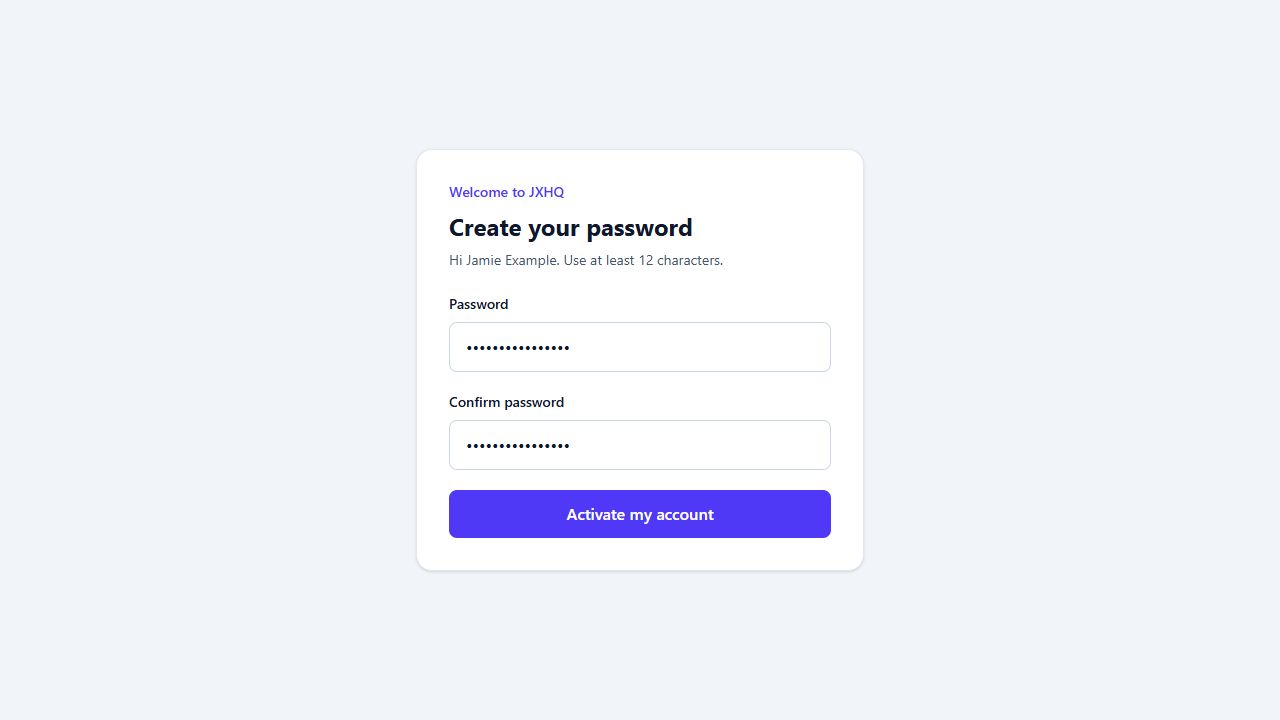
JXHQ sends you a private acceptance link. A company invitation opens your general client area. A project invitation takes you directly to a particular project after setup.
- Open the acceptance link sent by JXHQ.
- Create a password containing at least 12 characters.
- Enter the same password again and activate your account.
- You will be signed in automatically.
Invitation links expire after 48 hours. Ask JXHQ for a replacement if the link has expired.
Step 2
Your dashboard
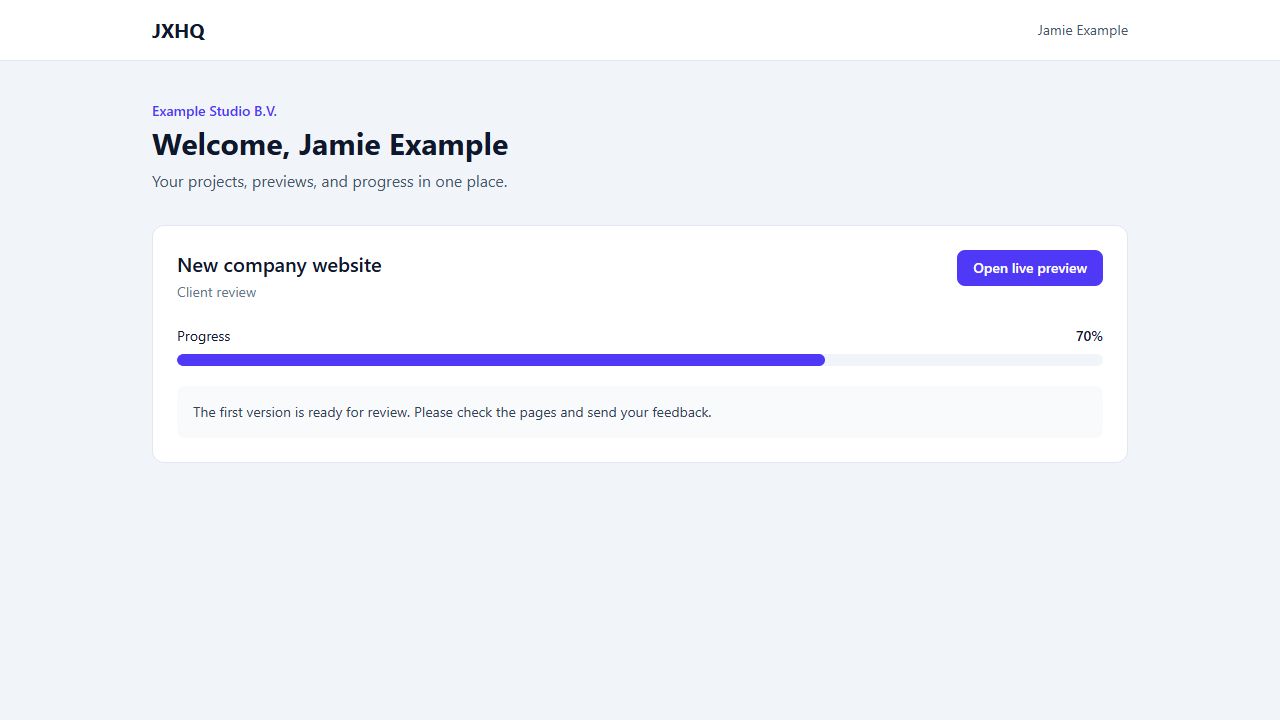
After signing in, the dashboard shows your current projects, their phase and progress, recent information from JXHQ, and available preview links. Later releases will also show quote actions, unpaid invoices, and released files here.
Projects and previews
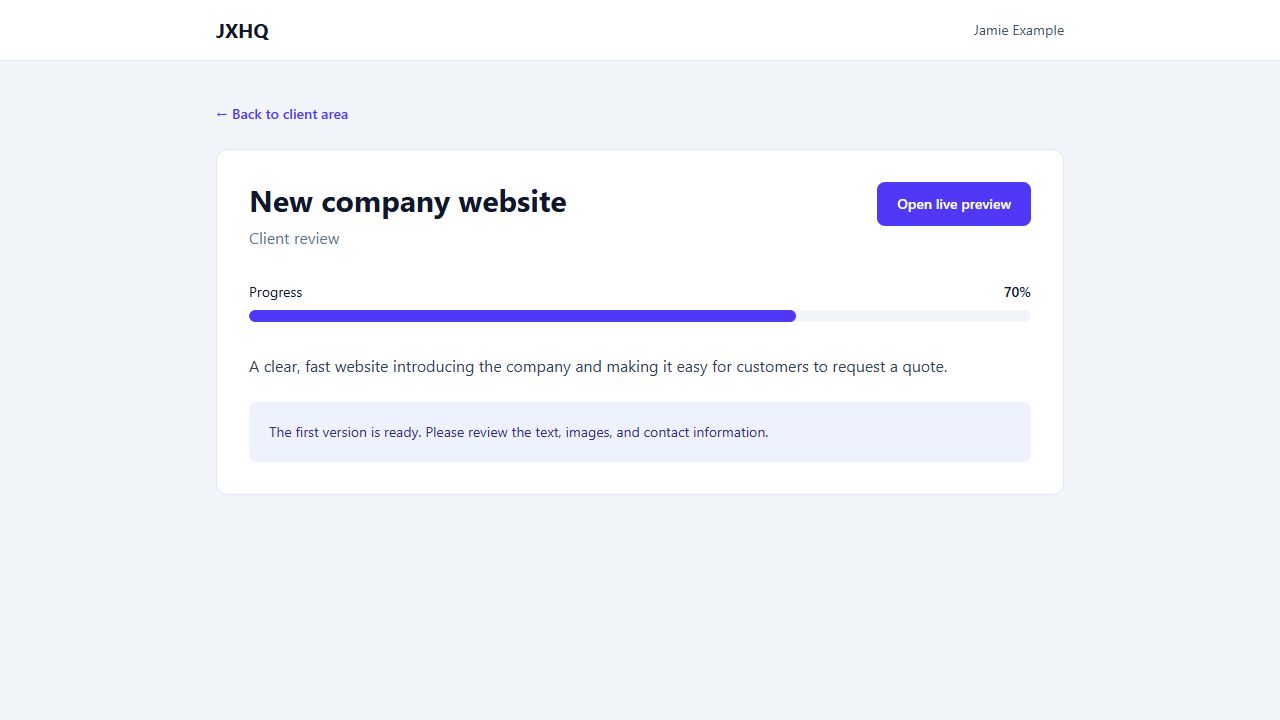
Select a project name to see its full status. The progress bar provides a quick overview; the current phase and status message explain what is happening now.
When a preview is available, select Open live preview. A preview is work in progress and may change while feedback and revisions are handled.
Quotes
When a quote is ready, you will be able to review one-time and recurring costs separately, download the document, and approve or reject it. Approved one-time costs become one invoice; recurring costs become a separate repeating invoice schedule.
Invoices and payment
Invoices will show the amount, due date, bank-transfer reference, payment status, and downloadable PDF. Payments are checked and recorded manually by JXHQ, so a bank transfer may not appear immediately.
Downloading completed files
After payment has been recorded, JXHQ manually releases the finished project files. Only released files will appear in your client area. Downloads remain private and require you to be signed in.
Common problems
My invitation does not work
The link may have expired or been replaced. Ask JXHQ to regenerate it. Always use the newest link you received.
I cannot sign in
Check that you are using the invited email address. Passwords are case-sensitive. Contact JXHQ if your account has not been activated or has been suspended.
My payment is not marked as paid
Payments are checked manually. Include the invoice reference in your bank transfer and allow time for it to be received and recorded.
I cannot download project files
Files become available only after JXHQ explicitly releases them. Payment alone does not release files automatically.
Still need help?
Contact JXHQ and include your company name and project name. Never send your password.
Email hello@jxhq.net